Computers gradually lose speed due to physical buildup, system clutter, and outdated software. Everyday use subjects workstations to dust, background processes, and unpatched operating systems. Understanding which routine tasks boost speed and which actions demand professional care helps extend hardware life and keep local workflows uninterrupted.
Physical Factors Impacting System Speed
Hardware performance depends heavily on environmental conditions and internal cleanliness. When physical maintenance is neglected, systems overheat and automatically throttle processing speeds to prevent permanent component failure.
- Dust Accumulation and Airflow Restriction: Internal fans draw in surrounding air to cool heat sinks, graphic cards, and processors. Dust acts as an insulating blanket, trapping heat and forcing fans to spin harder while components slow down to protect against thermal damage.
- Thermal Paste Degradation: Over years of operation, the compound transferring heat from the processor to the cooling unit hardens and loses effectiveness, leading to persistent thermal throttling even in clean environments.
- Venting Blockages: Positioning desktop towers against walls or running laptops on soft surfaces blocks primary exhaust ports, raising internal operating temperatures significantly.
Software Factors Decreasing Daily Performance
Operating systems accumulate temporary storage files, redundant startup entries, and conflicting software dependencies over prolonged periods.
- Unnecessary Startup Applications: Programs frequently set themselves to load automatically during bootup, consuming valuable RAM and CPU resources before primary tasks even begin.
- Drive Storage Capacity Limits: Hard drives and solid-state drives require roughly 15% to 20% free space to execute system paging, virtual memory operations, and temp file creation smoothly.
- Outdated Operating Systems and Drivers: Running legacy software or missing critical patch updates leads to memory leaks, system instability, and suboptimal hardware communication.
Essential DIY Maintenance Tasks for Quick Performance Recovery
Business owners and home users can execute foundational cleanup routines to maintain peak operation without specialized technical tools.
- Managing Startup Programs: Open the Windows Task Manager or macOS Activity Monitor to disable non-essential programs from launching on system boot.
- Clearing Temporary Storage: Delete browser caches, downloaded installation files, and system trash folders weekly to reclaim storage capacity across internal drives.
- Automating System Updates: Enable automatic updates for the operating system and key applications to apply critical security patches and performance optimization fixes.
- Rebooting Regularly: Power down or restart devices daily to flush active RAM and end lingering background threads that degrade overall speed.
Organizations requiring comprehensive infrastructure optimization can explore dedicated support options through our SonicKorp IT Services to prevent system bottlenecks across commercial networks.
Technical Tasks Best Left to Professional Care
Certain maintenance procedures involve physical disassembly, deep hardware diagnostics, or sensitive system modifications that carry risks if attempted without proper training.
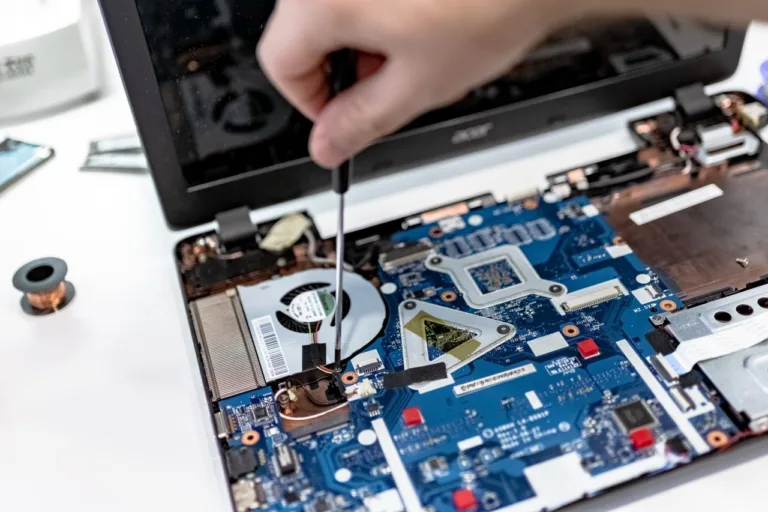
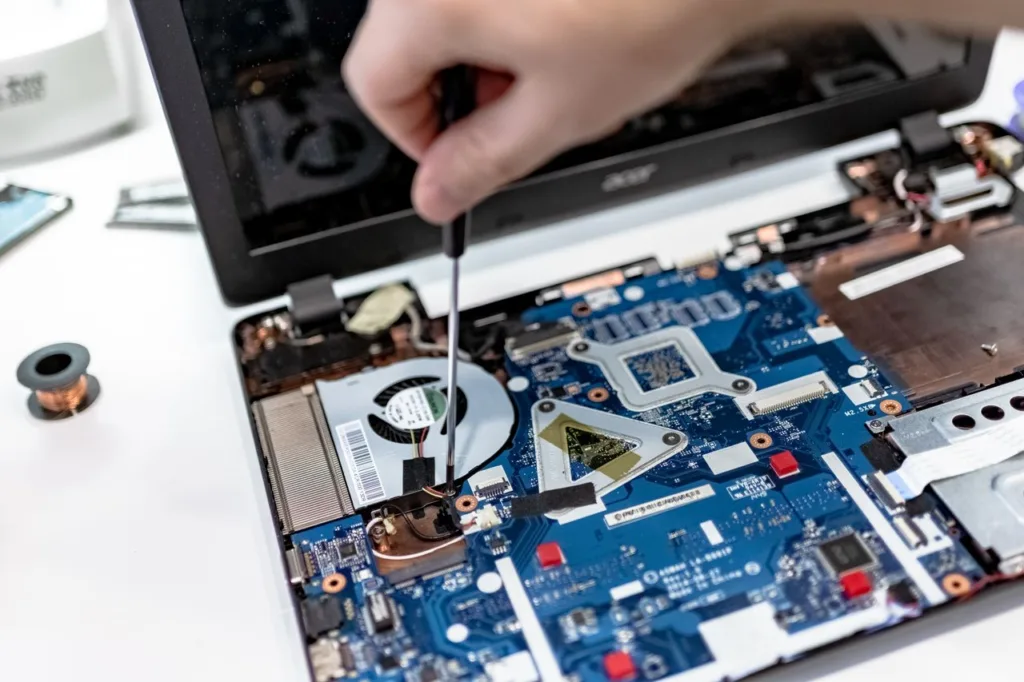
- Deep Component Cleaning: Opening power supplies, delicate cooling assemblies, and motherboard circuitry with improper compressed air or static tools can cause permanent electrostatic damage.
- Thermal Compound Replacement: Removing heat sinks to reapply thermal paste requires precise handling of sensitive processor sockets and correct paste application patterns.
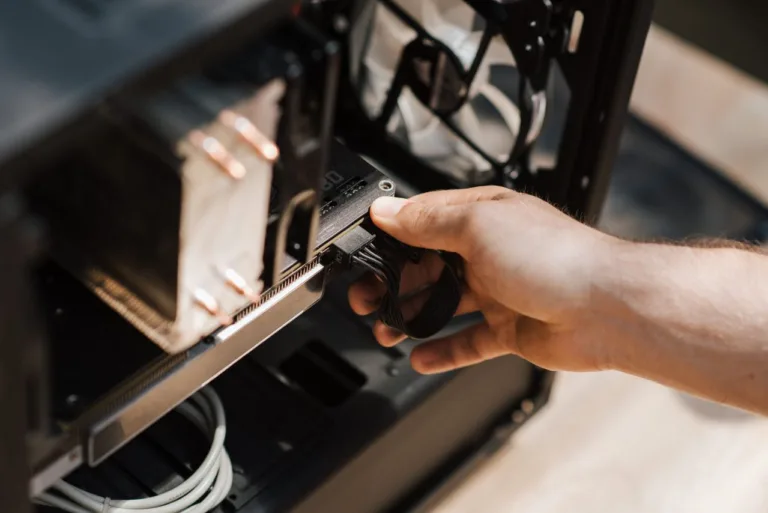
- Hardware Upgrades and Migrations: Transitioning legacy mechanical hard drives to high-speed NVMe solid-state drives or expanding system RAM demands proper component compatibility checks and secure data cloning.
- Malware and Rootkit Remediation: Advanced cyber threats hide deep within system registries and boot sectors, requiring specialized isolation tools to eliminate completely without corrupting underlying data.
For specialized hardware repairs, hardware upgrades, and hands-on system tune-ups in Taunton, MA, and surrounding regions, visit our main SonicKorp Solutions hub to connect with local technician teams.
Balancing Regular Care with Modern Digital Growth
Maintaining fast computer hardware is one component of a healthy digital operation. Efficient workstations combined with optimized web platforms allow local businesses to serve clients quickly and keep operations running smoothly. Discover our full service breakdown on the SonicKorp Services page, or learn how we build custom online experiences on our SonicKorp Web Development portal. Businesses seeking to broaden local market reach can also consult our SonicKorp SEO Services for tailored search strategies.
For additional insight into digital strategy and technological solutions, browse the SonicKorp Blog or reach out directly via the SonicKorp Contact Page to discuss custom technical support plans.
Frequently Asked Questions
1. Why does a computer get slow even with plenty of free storage space?
Computers slow down despite low drive usage when physical dust traps heat, thermal paste breaks down, or background software processes saturate RAM and CPU usage. Overheating forces processors to slow down to prevent hardware damage, while unnecessary startup programs hog active memory resources regardless of available drive space.
2. How often should desktop computers and laptops undergo physical cleaning?
Desktop towers and business laptops operating in standard office environments should undergo superficial external cleaning monthly and deep internal dust removal every 6 to 12 months. Environments with pets, high foot traffic, or industrial dust require quarterly physical maintenance to maintain proper ventilation and cooling efficiency.
3. Can running system cleanup software cause damage to operating systems?
Third-party registry cleaners and aggressive automated cleanup utilities can accidentally delete critical system files, corrupt user registry entries, or disable essential background services. Sticking to built-in system utilities like Windows Disk Cleanup or native storage management tools prevents accidental operating system instability.
4. What is the difference between a software tune-up and a hardware upgrade?
A software tune-up optimizes existing resources by clearing temporary files, disabling unnecessary startup items, and updating drivers. A hardware upgrade physically replaces or adds physical components, such as installing additional RAM or upgrading a traditional hard drive to a solid-state drive, providing dramatic speed increases when software fixes reach their limits.
5. When should a business hire professional IT services instead of managing computer upkeep internally?
Businesses should partner with professional IT services when hardware disassembly is required, recurrent system errors disrupt daily operations, network security concerns emerge, or staff members spend excessive billable hours troubleshooting technical issues. Professional technicians provide proactive monitoring, secure data backups, and safe component servicing to minimize operational downtime.